
How to Watch NFR on Fire TV & Fire Stick
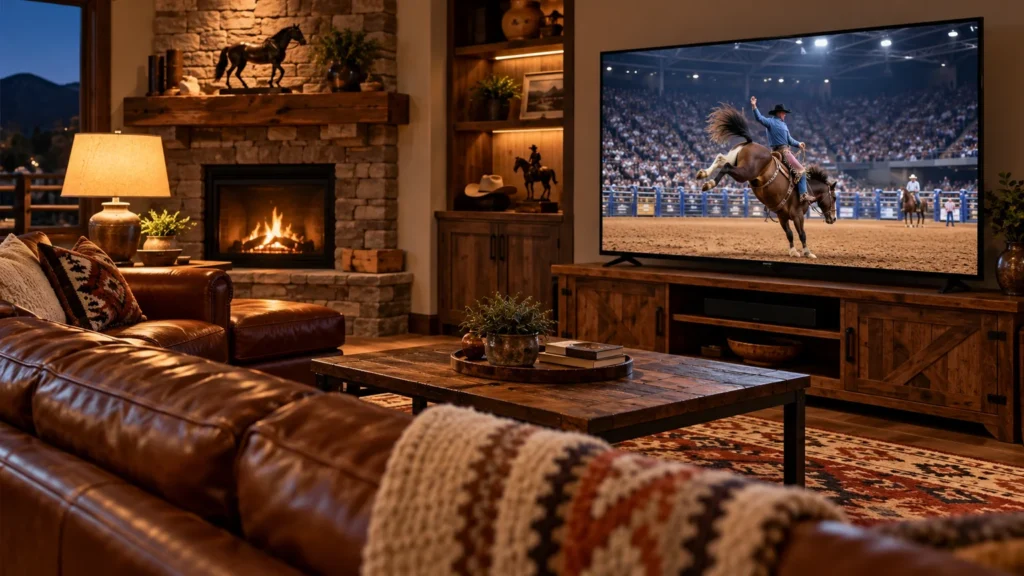
Set up your Fire TV or Fire TV Stick with the licensed streaming app before NFR night. This guide covers installation, account access and the checks that help distinguish an app problem from a missing subscription entitlement.
Prepare the Fire TV first
Connect the device to the correct HDMI input, attach reliable power and connect it to your network. Use the device settings to check for available system updates. Confirm app support for your model and country through the official Cowboy+ website. A Fire tablet and a Fire TV player are different products, so verify the specific screen you intend to watch.
Find and install Cowboy+
- Open the Fire TV app search or app-store area.
- Search for the official Cowboy+ app.
- Check the publisher and compare it with the service’s download links.
- Install the app and open it.
- Sign in with your existing streaming account before choosing a new subscription.
Do not sideload an unrelated video app because a search result promises free NFR coverage. The free-viewing explainer separates licensed highlights and promotions from full paid performances.
Confirm NFR access before the event
Use the plan guide to check the exact subscription you purchased. If the app requests payment after you already subscribed, compare the account email with your receipt. The issue may be a different login or a purchase through another platform. Avoid making another purchase just to remove a locked symbol. Official support can help with account-specific entitlement issues.
Select the right live program
Find the NFR event collection and choose the performance corresponding to the round schedule. A network live channel, an NFR event stream and an archived clip can appear as separate listings. Check the program description, season and start time. Set the volume and test playback on another available program before settling in for the main event.
If the screen freezes or the sound is wrong
Leave the video, reopen it and restart the app before trying broader device changes. Confirm the television is on the intended input and that the audio output is correct for your speakers. If the video buffers, reduce competing network activity or test a supported wired adapter. Our streaming help guide explains how to compare the device, account and network without resetting everything.
Use your Fire TV away from home
A hotel may use a sign-in Wi-Fi network or restrict access to television inputs. Ask about those conditions before relying on your player for the trip. Keep your remote and power adapter together, and sign out of shared equipment afterward. Check international access when traveling abroad, and use replays if the live start does not fit your plans.
Explore more NFR viewing and travel guides.