
How to Watch NFR on a Smart TV: Apps, Players & Casting
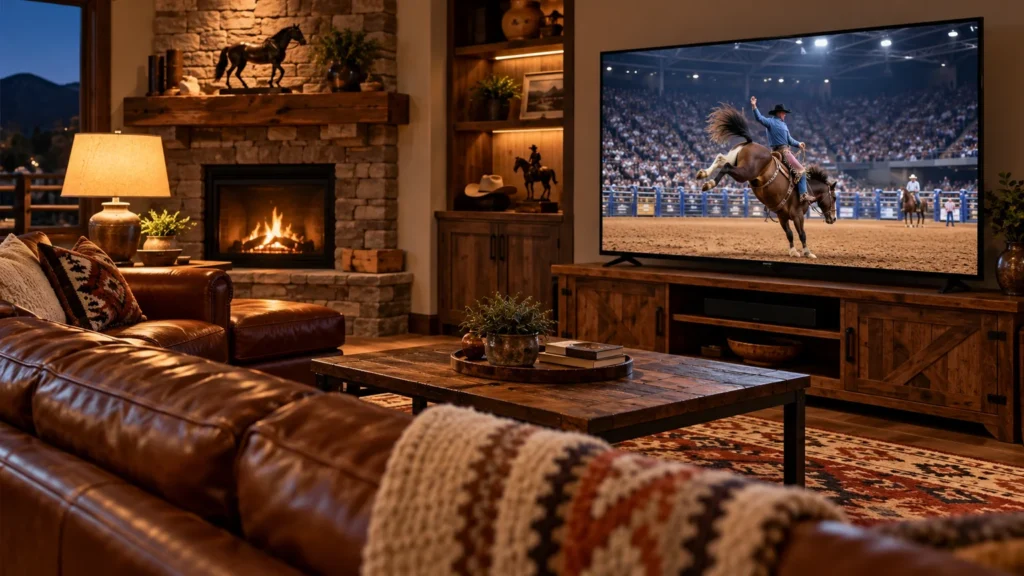
A smart TV can show NFR through a supported native app, an external streaming player or an approved casting setup. The right route depends on the television’s operating system and model, not simply the brand printed on its frame.
Identify the operating system
Check the model and software information in the television settings. Two televisions from the same manufacturer can use different operating systems or app catalogs. Look for the supported-device information and official download links on Cowboy+. Do not assume that an app listed for Android TV also exists as a native app for every Samsung, LG or other television.
Option one: a supported native app
Search the television’s own app store for Cowboy+ and verify its publisher. If it is offered for your model and region, install it, sign in and test a playable program. Confirm NFR access through the subscription guide. If the app is missing from the store, check official compatibility information rather than following an unofficial installation workaround.
Option two: an external streaming player
A supported player can connect through an available HDMI input even when the television lacks a native app. Compare Roku, Fire TV and Apple TV setup guides. Confirm the app is available on the exact device and in your region before purchasing equipment. Keep its remote and power supply available so setup does not depend on the television remote controlling everything.
Option three: a permitted casting method
A phone, tablet or computer may provide another route if both the service and receiving screen support the intended connection. Test the actual video, not just screen mirroring of a home screen. Hotel networks can prevent devices from finding one another even when both have internet access. A wired laptop-to-TV setup also needs compatible outputs and playback support; do not promise it will work with every device.
Test the complete setup
- Find a playable program and let it run for several minutes.
- Check picture shape and readable on-screen information.
- Confirm sound reaches the intended speakers.
- Test the pause, back and volume controls.
- Locate the NFR collection and the correct season.
- Keep account recovery access available.
An app opening successfully is only the first part of the test. Use streaming help if the video fails or repeatedly buffers.
Choose live viewing or catch-up
Follow the round schedule for live coverage or the replay guide when you plan to watch later. Before using a shared television, consider how you will sign out and remove your account. For overseas trips, check international viewing conditions separately from the television’s technical compatibility.
Explore more NFR viewing and travel guides.